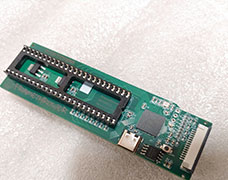

A500 / A2000 DIP Denise Framethrower

What you will need
- Pi Storm with a Raspberry Pi (The Raspberry Pi will need a camera connector)
- A 48pin DIP version of the Denise Amiga Custom Chip
- A Raspberry Pi camera cable.
- Raspberry Pi 3A+/3B+/4 will take a 15pin 1.0mm pitch FPC reverse contact
- Raspberry Pi Zero camera will likely need a 15pin to 22pin 1.0mm pitch FPC reverse contact.
Physical Installation
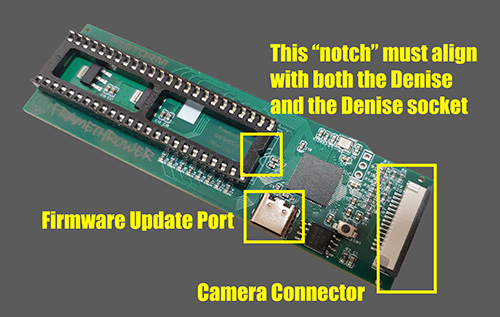
- Place Framethrower into the Denise Socket. Pay special attention to the socket “notch”.
- Place Denise into the Framethrower Denise Socket.
- Connect the FPC Cable to Framethrower (metallic FPC contacts facing down)
- Connect the FPC Cable to the Raspberry Pi/PiStorm "Camera" connector. Contacts facing the HDMI port.
- Also, be sure to get ALL the pins in the motherboard’s 48-pin socket. There should be no overhanging pins.
After installing the Framethrower, the Denise may run hotter than expected. Consider adding a heat sink and/or fan inside.
Emu68 Setup
EMU68 1.0.5, 1.0.6 and 1.0.7 have already basic Framethrower support build. Best if you can use 1.0.7 The easiest way to configure Emu68 for Framethrower is to edit the cmdline.txt file on the Emu68 SD-Card FAT partition.
Normally the cmdline.txt file is in the root directory of the FAT partition. However, please also search for the file in sub-directories (or check the config.txt file for a line "cmdline=path to cmdline.txt") as some readymade distributions have it elsewhere. If there is no cmdline.txt to be found anywhere on the SD cardthen just create one with a text editor. Keep in mind, with cmdline.txt all parameters must be written in just one line, seperated by space. By adding these parameters at the end of the old parameter list you can enable Framethrower. I also, recommend you setup a ScreenMode profile for better results.
unicam.boot unicam.integer
(This enables integer/pixel perfect passtrough and automatic RTG/Native switching)
unicam.boot unicam.b=20 unicam.c=0 unicam.phase=60
NOTE: unicam.smooth was omitted due to bugs in the current implementation)
(This enables scaled to 4:3 fullscreen passtrough and automatic RTG/Native switching)
It's advised to set the HDMI output to 50Hz for a PAL Amiga, otherwise you likely notice strong tearing effects. Here are two example settings for config.txt. Note: This may or may not work on your system/monitor.
720p50Hz Output :
disable_overscan=1
# ScreenMode: 720p 50hz
hdmi_group=1
hdmi_mode=19
1080p50Hz Output :

disable_overscan=1
# ScreenMode: 1080p 50hz
hdmi_group=1
hdmi_mode=31
Additional information can be found here:
Official Guide